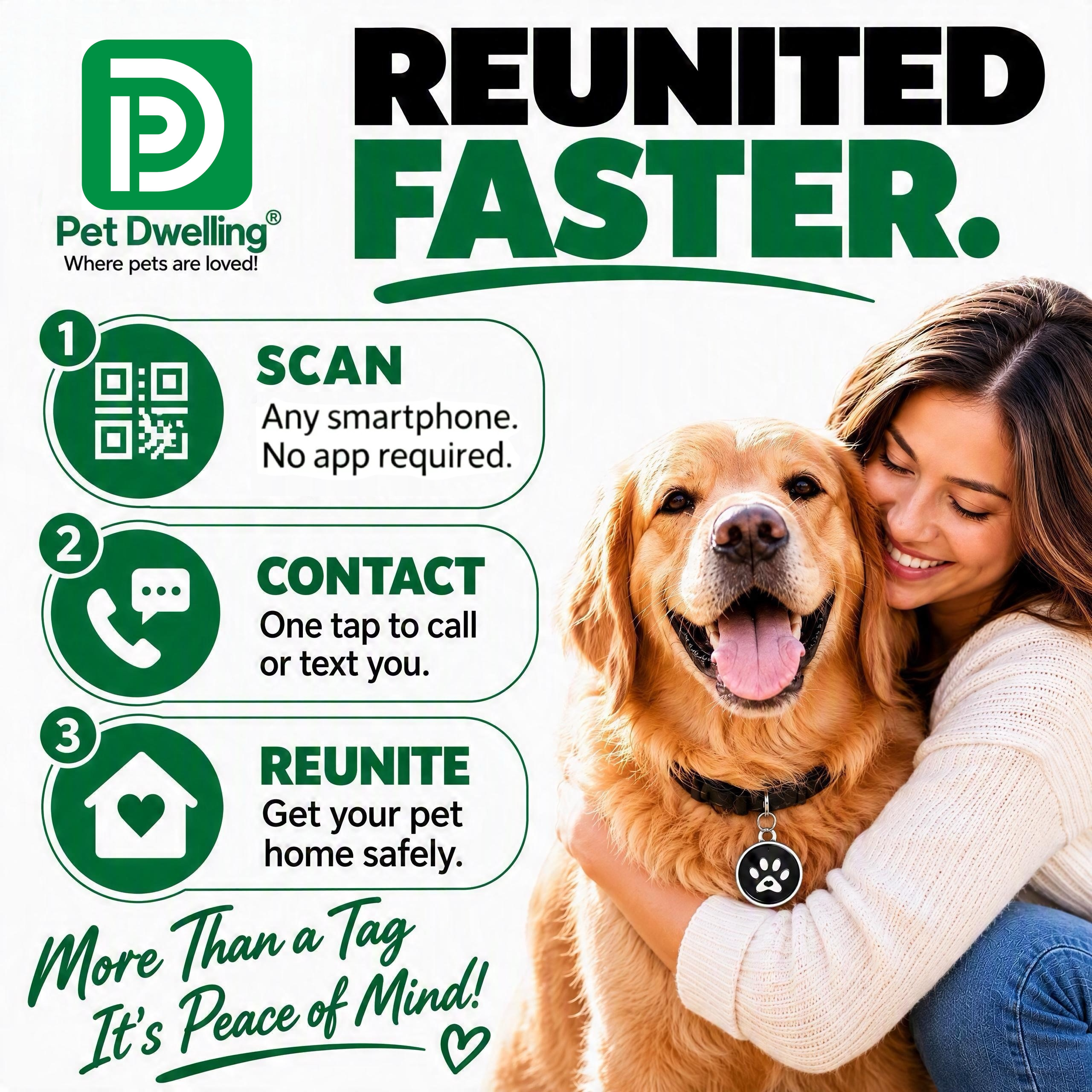
Pet Dwelling Smart ID Tag: for Safety. Designed to Last. Trusted for Peace of Mind.
-
Durable & Reliable
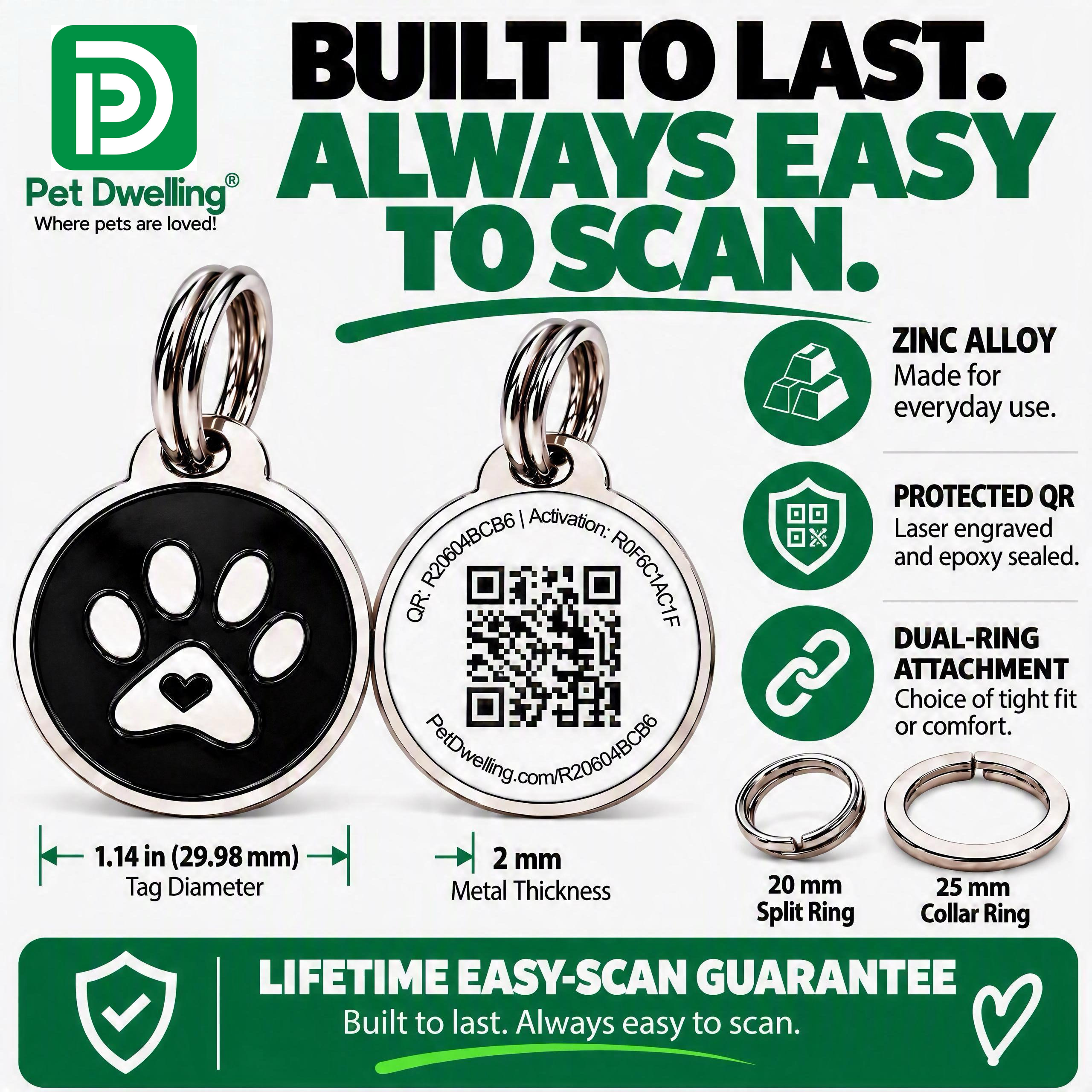
Made from strong, non-toxic zinc alloy with a scratch-resistant, non-fading QR code built to last.
-
Smart Pet Profile
Add photos, contacts, and medical info. Update anytime so your pet’s details are always current.
-
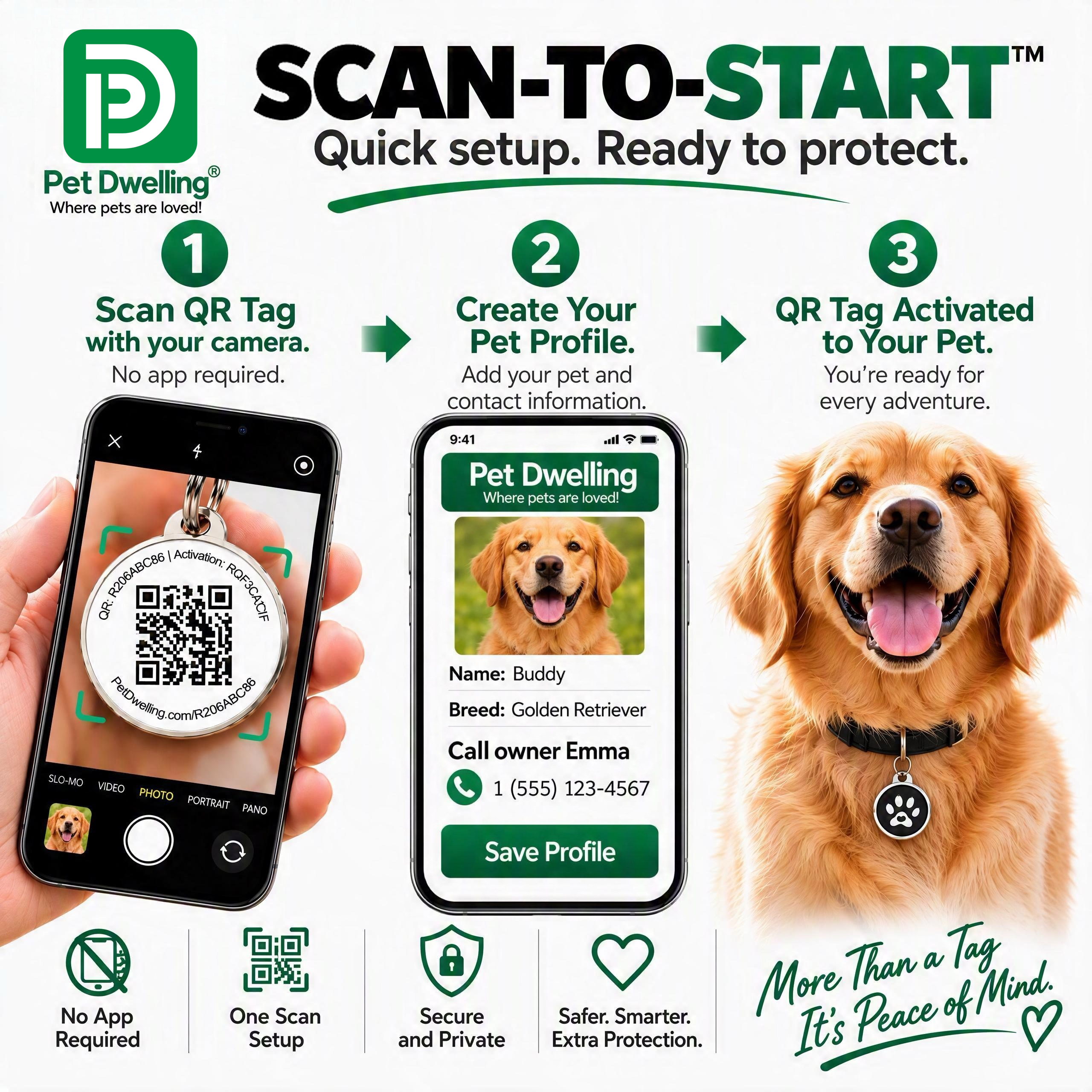
Instant Setup. No App.
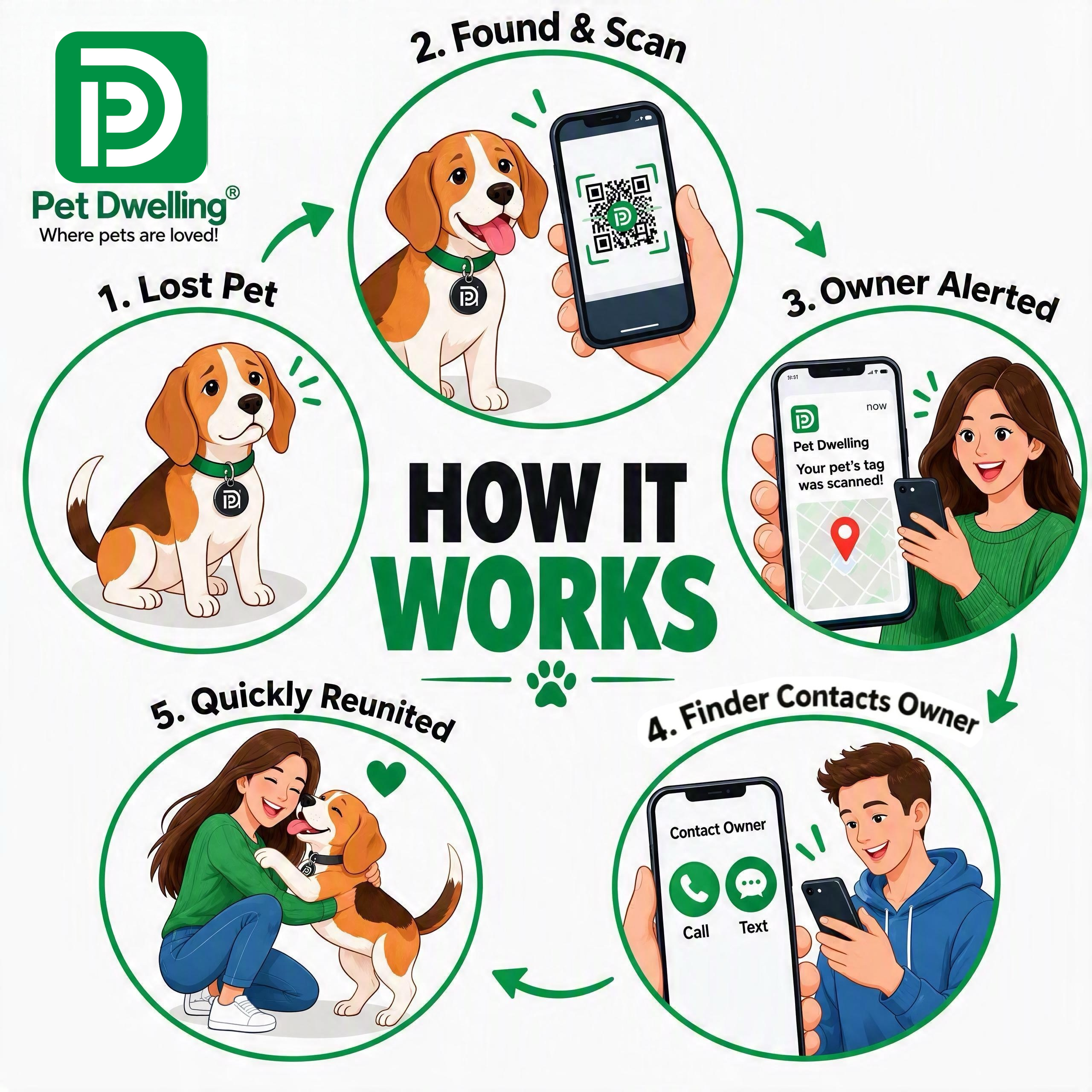
Scan to activate in seconds. Instant scan alerts with location and one-tap calling help finders reach you quickly.
-
Safe & Secure Recovery
Multiple contact options, 24/7 hotline, and privacy protection—so your pet gets home faster.
-
Trusted Since 2012
Protecting 500,000+ pets with smart ID tags powered by an advanced platform designed for fast, reliable pet recovery.
See how Pet Dwelling keeps your pet safe.

Turn on Text Alerts
-
Start the Registration
- Click on the "Turn on Text Alerts" tab on your pet profile page.
- You will see a prompt to enter your phone number.
-
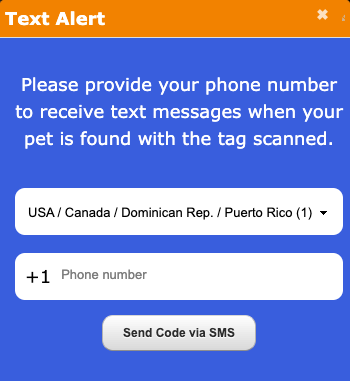
Enter Your Phone Number
- A new screen will appear asking you to provide a phone number.
- Select your country/region from the dropdown menu if applicable.
- Enter your phone number in the provided field.
- Click Send Code via SMS to receive a verification code.
-
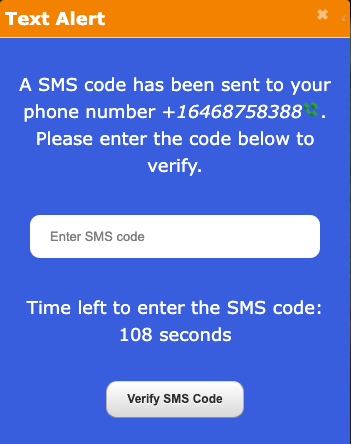
Verify Your Phone Number
- You will receive an SMS code on the phone number you entered.
- Enter the code in the provided field on the screen.
- Note: You have a limited time to enter the code (e.g., 110 seconds).
- Click Verify SMS Code to confirm.
-
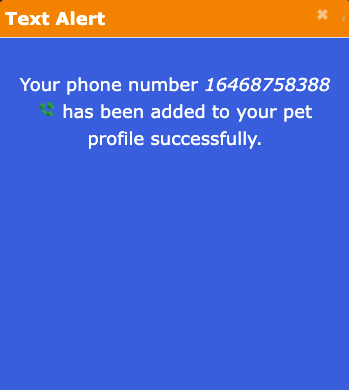
Completion
- Once the code is verified, you will see a confirmation message stating that your phone number has been successfully added to your pet profile.
- You will now receive an email and SMS notifications when your pet's tag is scanned.
-
Change Phone Number
- Click on the Turn on Text Alerts tab on your pet profile page.
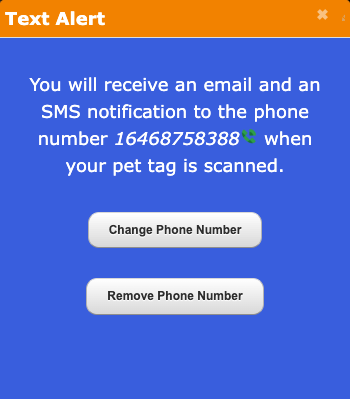
- You will see a message indicating, "You will receive an email and an SMS notification to the phone number when your pet tag is scanned," along with "Change Phone Number" and "Remove phone number" buttons.
- Click on the Change Phone Number button to start the change phone number process from the step 2.
-
Remove phone number
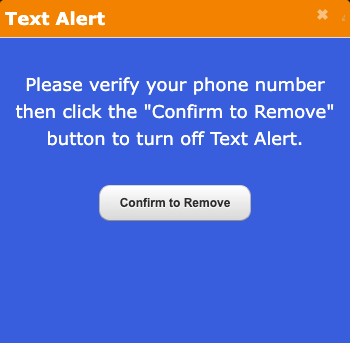
- click on the "Remove Phone Number" button to start the change phone number process.
- Please verify your phone number then click on the "Confirm to Remove" button to turn off Text Alerts.
-
Removal confirmation
- Click on the Turn on Text Alerts tab on your pet profile page.
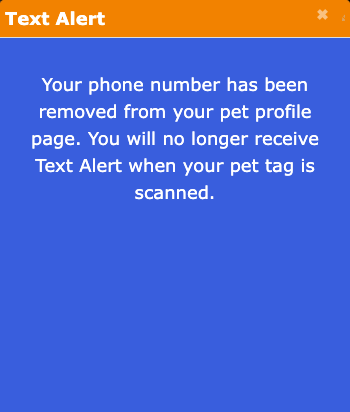
- You will see a message indicating "You phone number has been removed from your pet profile page. You will no longer receive Text Alert when your pet tag is scanned."